- 1. Factory reset the device. Use a paper clip or SIM card ejector pin to hold the button inside the hole. You will see LED flash 7 times slowly followed by a quick flash. Once the quick flash finishes, release the reset button.
- 2. Disconnect the batteries and reconnect batteries, you should see LED light changes fading in blue.
- 3. Turn on airplane mode for the phone. Then only turn on the WiFi. This will force the setup communication to go through WiFi instead of LTE/4G.
- 4. Launch GDB monitor app, Tap the “+” button, select Monitor 2.0.
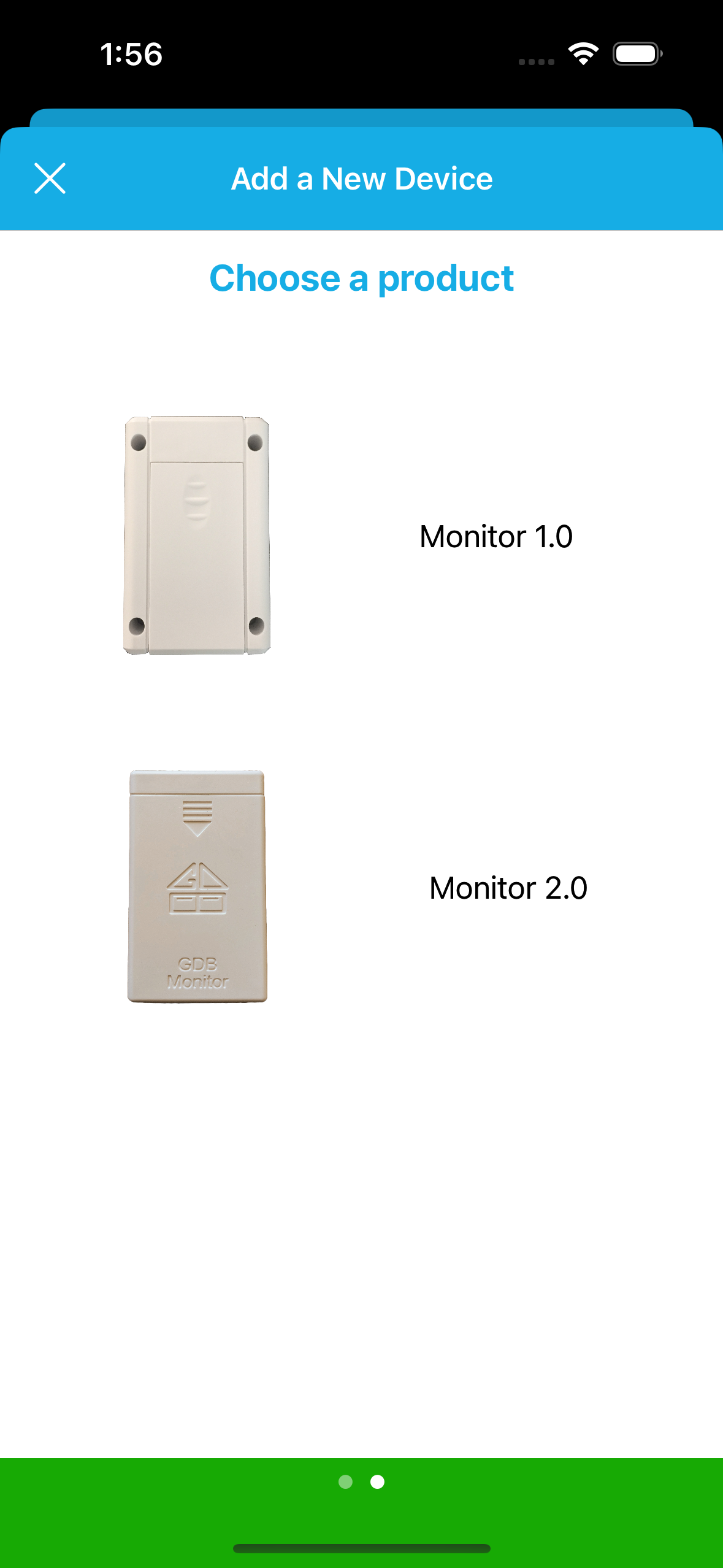
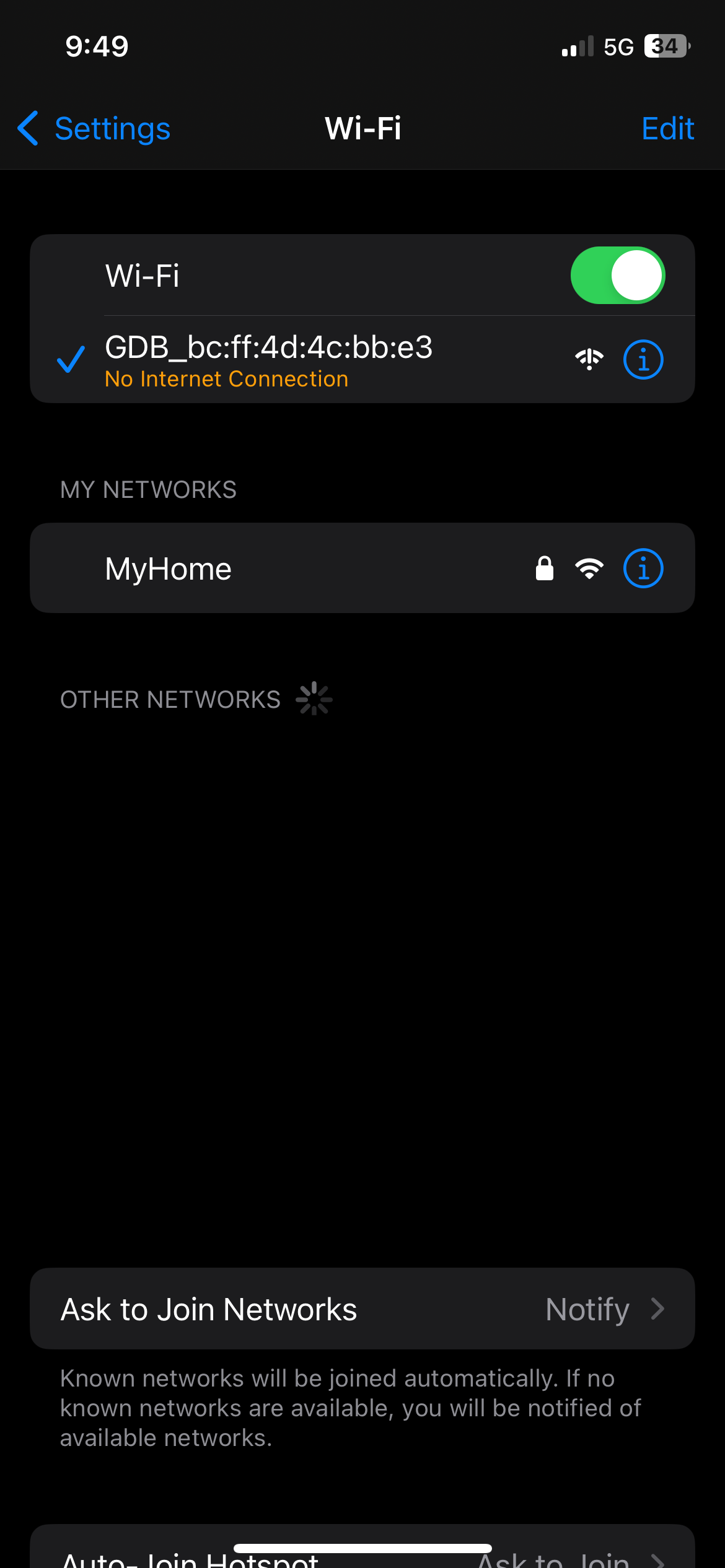
- 5. Continue to follow the steps. When you see “Step 4 of 5” on top of your iphone’s screen, go to your phone’s WiFi settings. Connect your phone’s WiFi to GDB_xx:xx:xx:xx:xx:xx. See the picture below.
- 6. Come back to the GDB monitor app. Select your router’s network name from the list in the ‘Choose A network ‘ screen.
- 7. Type your router’s password. Click the “Add device to network” button.
- 8. If you see the LED turn into solid green, it means the setup is successful.